



Of the many issues that may affect the working of an SQL Server database, Suspect state is a prominent one. It mostly occurs because of database corruption or missing log files, making the database inaccessible to users. To fix it, admins prefer a database restore from an available backup or use the DBCC CHECKDB command.
Using an SQL recovery tool is equally common, as it saves time and performs recovery with the least downtime. This blog digs deeper into the topic to find out the root causes, symptoms, and the methods to deal with this issue.
What is Suspect Mode and why does it happen?
This SQL Server condition indicates that the recovery process started but did not complete successfully, disabling the users from connecting to the database. The SQL Server engine performs this operation when it detects a missing file or corruption in the database structure. It also isolates the database to avert further loss of data. Here are some prominent reasons behind this state:
- Disk or hardware failure
- Corrupt transaction log files
- Deleted, inaccessible, or missing database files
- Abrupt system shutdown
- An entry into Suspect Mode,
- Inadequate disk space, halting operations mid-stream
- Inability of the SQL Server to rollback or roll-forward the database operations
Here, it is crucial to mention that a Suspect state is different from a Recovery Pending state, as the latter cannot even start the recovery process.
What are the symptoms of SQL Server Suspect Mode?
When using a SQL Server database, you may notice several crucial signs that point to Suspect Mode:
- The database in the SQL Server Management Studio (SSMS) shows a suspicious label
- The database connection drops instantly after the SQL error surfaces
- You get the SQL message citing logical consistency based on an I/O error
- You are unable to access the MDF and NDF files
- SQL maintenance plans, Agent jobs, and scheduled tasks fail to execute
- The SQL Server error log records show a fatal severity error – MSG 824
- The database remains offline despite the server restart
How to recover an SQL database from Suspect Mode?
To resolve this issue, you can restore the database by using a healthy backup, use the DBCC CHECKDB command, or try an advanced SQL recovery application. Let’s discuss them one-by-one.
Database restore from a healthy backup
Admins consider backup restore as the primary and perhaps the safest approach to recover the database from Suspect Mode. A backup copy allows the SQL Server to rebuild the database to a point captured before the failure or corruption occurred. It is different from performing a repair operation, as it takes the database back to a known good state.
- Open the SSMS and connect to your SQL Server instance
- On the left side of the screen, under the Object Explorer pane, click Databases to expand it
- Look for the database that shows Suspect Mode and right-click it to navigate to Tasks > Restore > Database
- In the Restore Database window, under the Source section, click Device > … (Browse button)
- In the resulting Select backup devices dialog box, select the latest backup file (.bak) of the database showing the Suspect Mode
- If you do not find the backup file, click the Add button
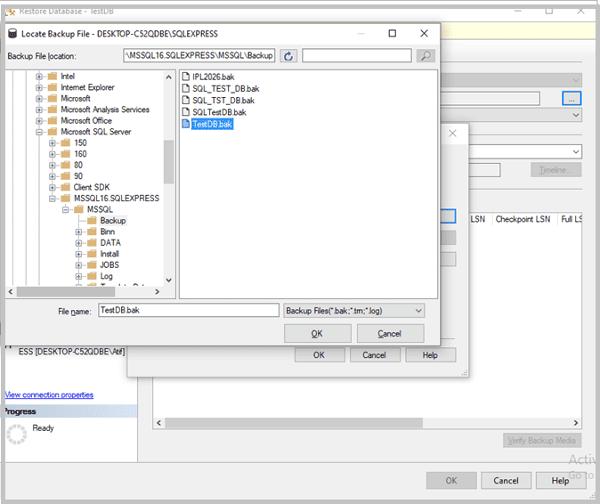
- Click the Options tab to verify the restore settings and click OK to start the restore.
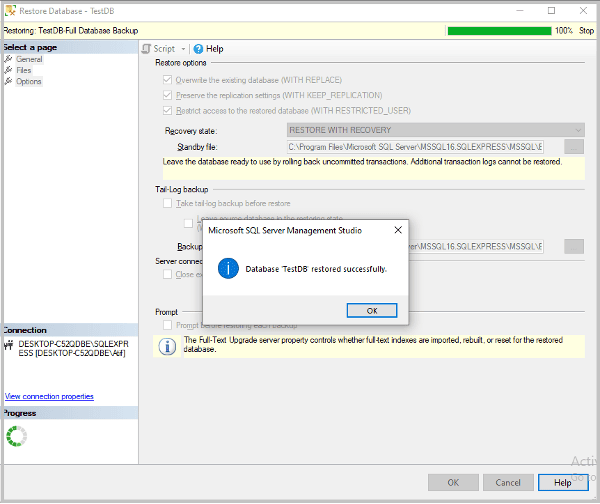
- After the completion of the restore process, you will see a dialog box with the restore success message and the OK button. Click OK.
- Right-click on your database and select Refresh to confirm its online availability
- This will complete your database restore process by using the backup file
Use the DBCC CHECKDB command to repair the database marked as Suspect
You can recover the database from the Suspect Mode even in the case of a missing or deleted backup file, with the help of the DBCC CHECKDB command. It will scan and repair the database for logical and physical inconsistencies.
Follow the steps mentioned below. We will perform the operations on the database ‘TestDB’. Replace the database name with yours when executing the repair operation:
- Open SSMS on your system and connect it to your SQL Server instance
- From the main menu bar, click on New Query to get the New Query window on the right side of the screen
- Identify the database, which is in Suspect Mode, by using the below T-SQL query:
SELECT NAME, STATE_DESC FROM SYS.DATABASES WHERE STATE_DESC = ‘SUSPECT’
- Set the database to EMERGENCY mode: ALTER DATABASE TestDB SET EMERGENCY
- Check the database consistency by using the DBCC CHECKDB command: DBCC CHECKDB (‘TestDB’)
- Change the database from EMERGENCY to SINGLE_USER mode and roll back the last transaction: ALTER DATABASE TestDB SET SINGLE_USER WITH ROLLBACK IMMEDIATE
- Run the repair option with DBCC CHECKDB: DBCC CHECKDB (TestDB, REPAIR_ALLOW_DATA_LOSS) WITH ALL_ERRORMSGS;
Since this repair option may remove the corrupt pages, admins suggest choosing this repair method as the last resort. Before starting this repair option, ensure to have a backup of your database.
- After completing the repair process, switch the database from SINGLE_USER to MULTI_USER and refresh the SQL Server database: ALTER DATABASE TestDB SET MULTI_USER
A successful repair is likely to remove the Suspect Mode from the database. If the repair fails, you will get an error message. For example: The emergency-mode repair failed. You must restore from backup.
To validate successful repair, check the database status again using DBCC CHECKDB command. If the status shows online, create a new full backup of the repaired database.
Limitations of manual repair methods
These manual ways will help to recover the database from Suspect Mode, but they have several limitations
- Possibilities of increased downtime, repeated errors, and failed repairs
- Permanent loss of corrupted data, which is not recoverable
- Adequate permissions to access the database
- You can know about the amount and type of data that you can lose only after the completion of the repair process.
- The admin must have a penetrating understanding of the SQL Server environment and the ingrained concepts
- Despite the repair, there is the risk of logical inconsistency in the database
To avoid these shortcomings, admins prefer using SQL database recovery tools to recover from Suspect Mode.
Using an SQL recovery tool for database recovery
When looking for a feasible third-party automated tool to recover your database from Suspect Mode, Stellar Repair for MS SQL can be a suitable alternative. Besides recovering the database from the Suspect Mode, it can also fix other possible errors and bring the database back to working condition.
The software can now repair your MDF file of up to 5GB online through its online SQL repair service, setting you free from downloading and installing it. For this, you simply need to do the following easy steps:
- Open the web page of the Online SQL repair service
- Upload your corrupted MDF file
- The tool repairs the file within 15 minutes with no human intervention
- Preview and download the repaired MDF file
To ensure the complete security of your data, the application permanently erases after 24 hours. The web application can help you resolve a wide range of issues:
- Repair the database showing Suspect Mode or Recovery Pending state
- Restore missing or corrupted MDF files online
- Resolves the error that remains untreated by the DBC CHECKDB command
- Fixes the databases that become corrupted due to server crashes, disk errors, virus attacks, etc.
- Retains data integrity and keeps the original database structure unaffected
Conclusion
Your database may face several issues while performing various crucial organizational operations. One of these is the possibility of Suspect Mode. This database state results when the recovery process starts but fails to complete successfully. This is unlike the Recovery Pending state, which does not start at all and remains pending. To recover the database from Suspect Mode, you can use its recent backup.
If you do not have the latest and healthy backup file, then the DBCC CHECKDB command is another suitable repair alternative. This method can cause significant loss of data. Hence, it should be the last on your priority list. Besides, these manual methods have several other drawbacks, such as increased downtime, failed repairs, the need for acute technical knowledge, and so on.
As an alternative, admins prefer using SQL recovery tools such as Stellar Repair for MS SQL to repair the database from Suspect Mode. Specifically, the online SQL repair service from Stellar now allows you to perform SQL database recovery of MDF files of up to 5GB online. This sets you free from the hassles of downloading and installation.
